

From the ChatGPT plugin directory
- In ChatGPT open Plugins.
- Search for IN-STORE and press Connect.
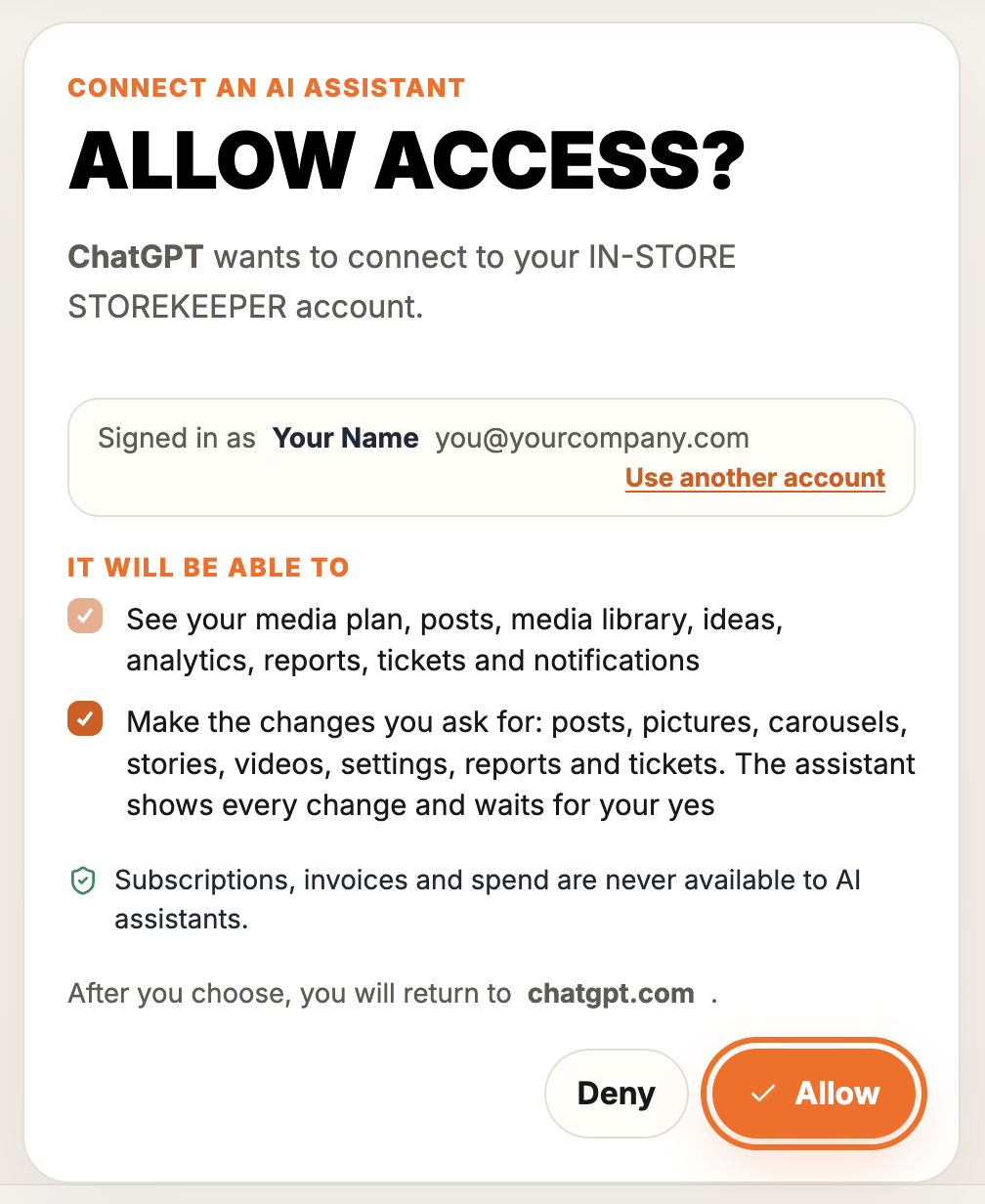
- Sign in to IN-STORE, check the permissions on the "Allow access?" page and press Allow.
Our listing is not yet published. Until IN-STORE appears in the directory, add it as a custom MCP server below.
Add a custom MCP server (until the listing is live)
ChatGPT on the web supports custom MCP servers with read and write tools. Availability depends on your workspace permissions and security settings; an administrator may need to allow the connection.
- In ChatGPT on the web choose Plugins in the left bar, press Add in the top-right corner and choose "Add custom MCP server".
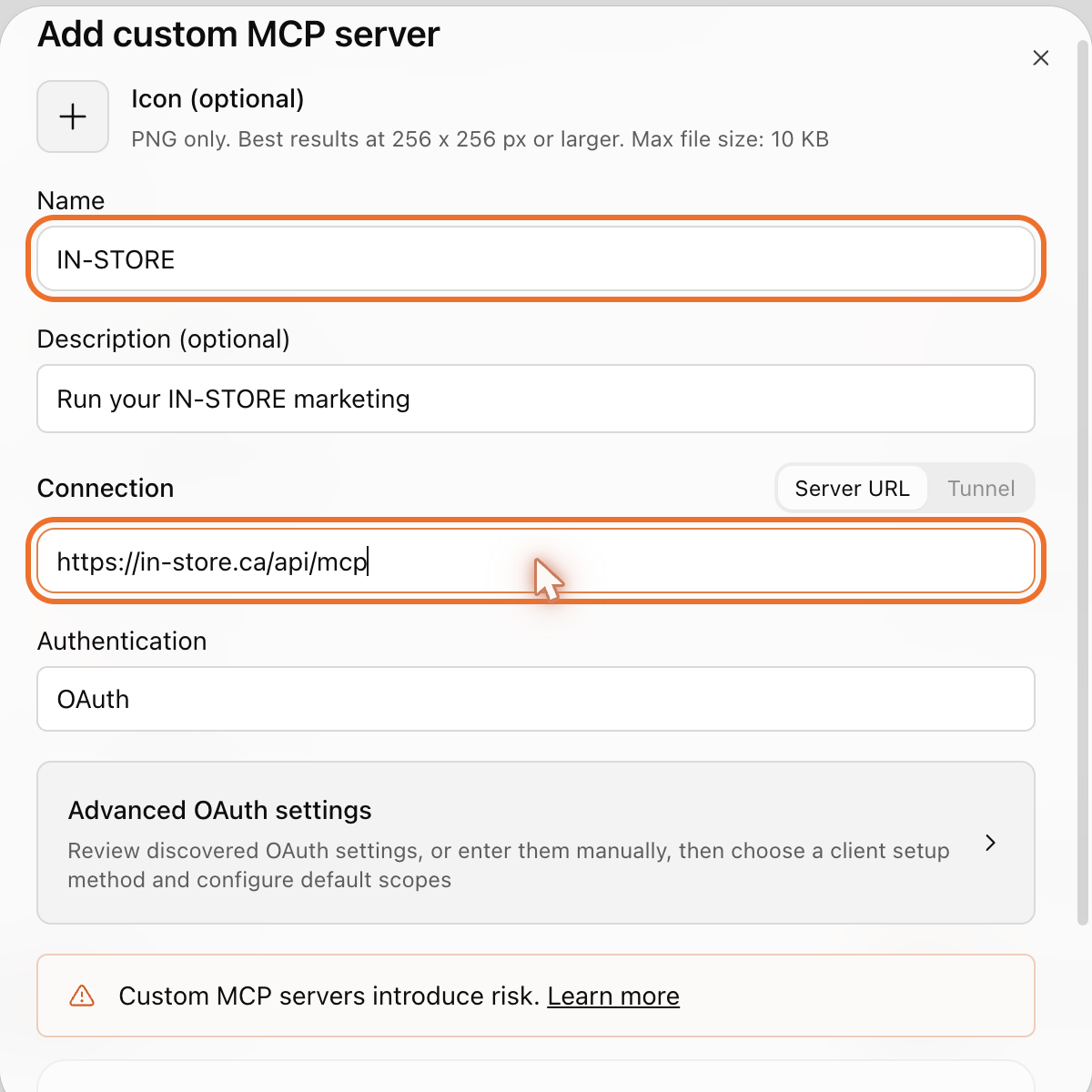
- Name: IN-STORE. Connection: Server URL https://in-store.ca/api/mcp. Authentication: OAuth. The description is optional.
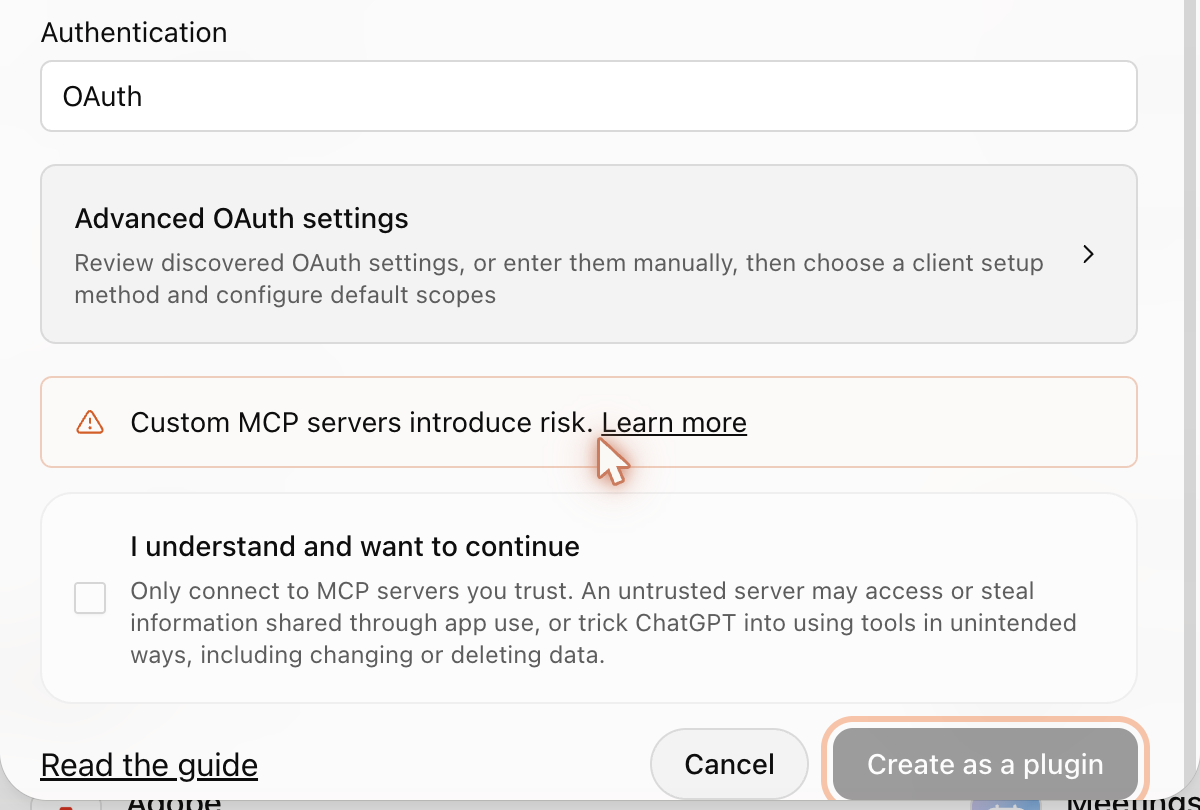
- Tick "I understand and want to continue" and press "Create as a plugin".
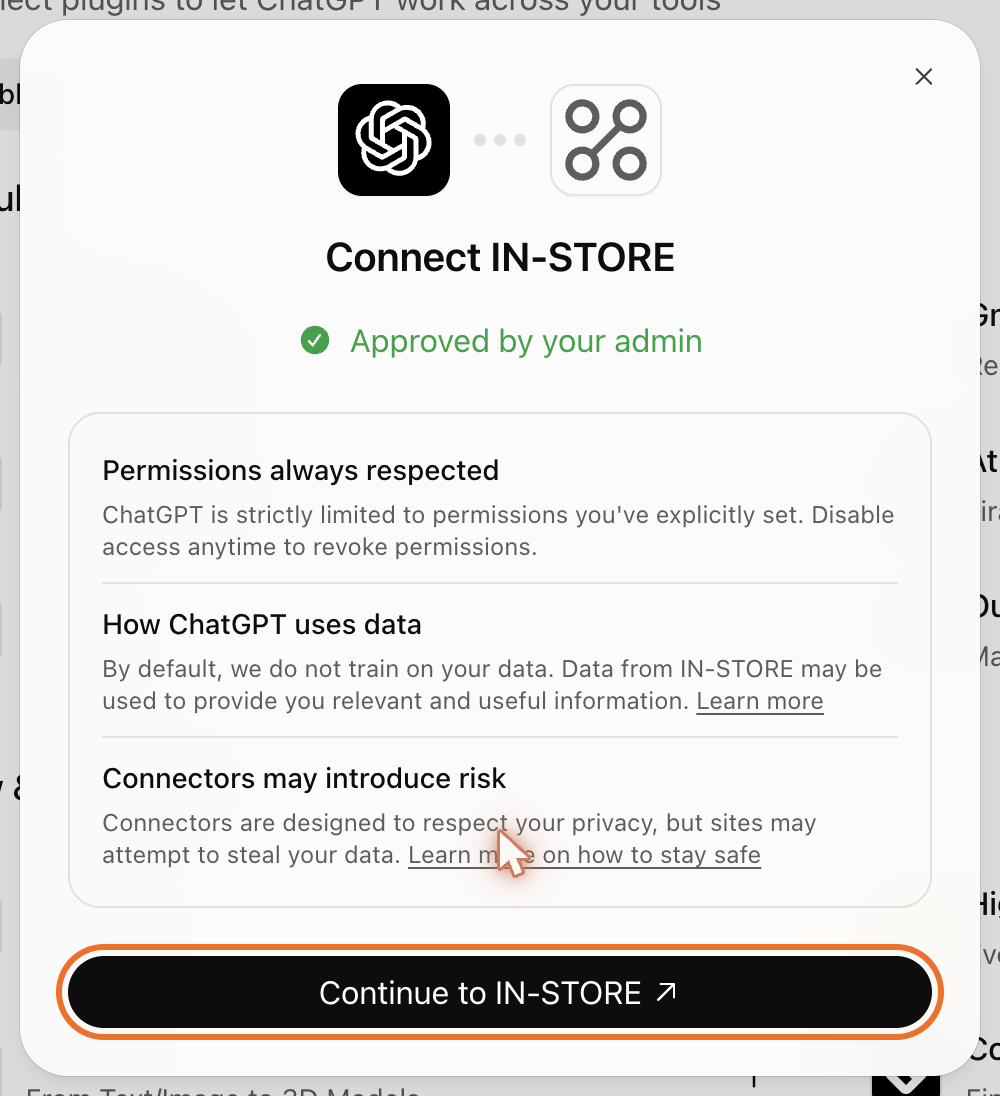
- In the "Connect IN-STORE" window press "Continue to IN-STORE". A page of in-store.ca opens: sign in if you are asked, check the permissions and press Allow.
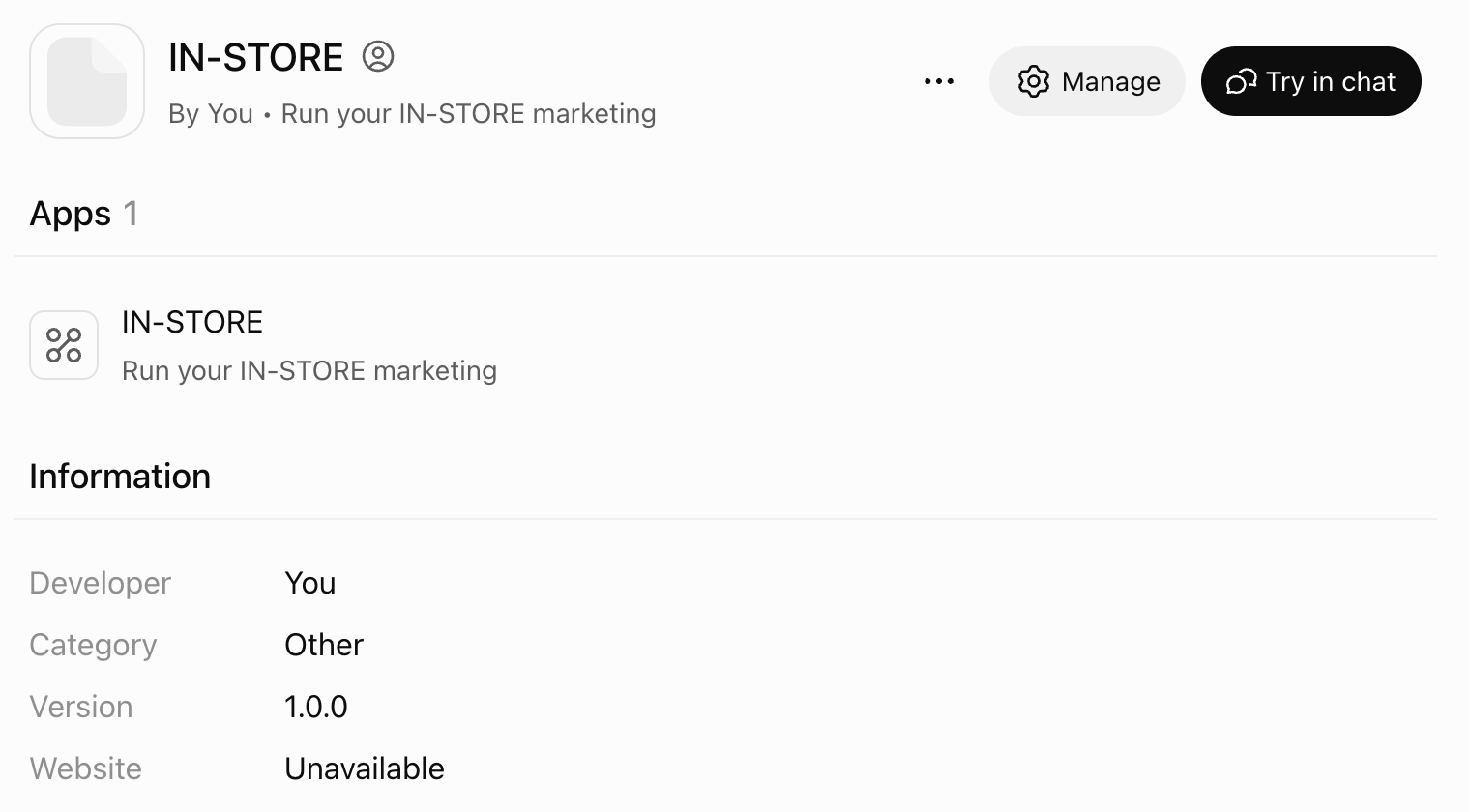
- You are back in ChatGPT and IN-STORE is listed under Installed. Press "Try in chat", or in any chat type @ and choose IN-STORE.
Server URL
https://in-store.ca/api/mcp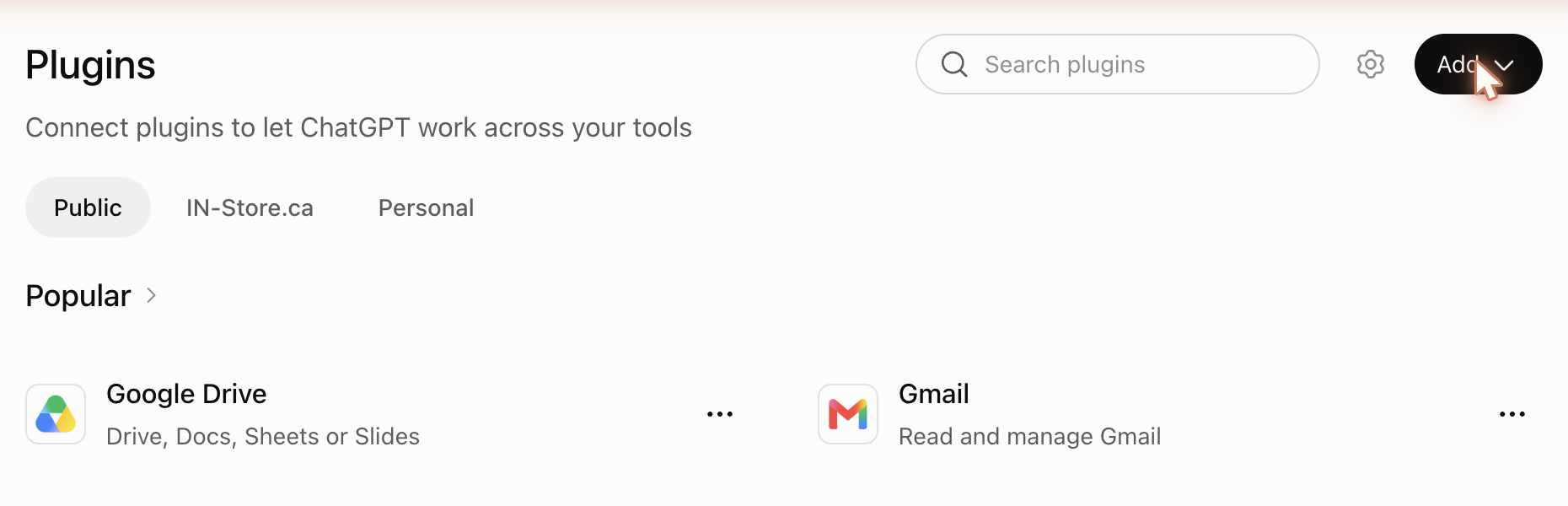
Good to know
- ChatGPT asks you to confirm actions that change something, on top of the two-step confirmation of IN-STORE.
- Removing the plugin in ChatGPT does not cut off access on our side. Revoke it in your cabinet under Settings, AI agents.