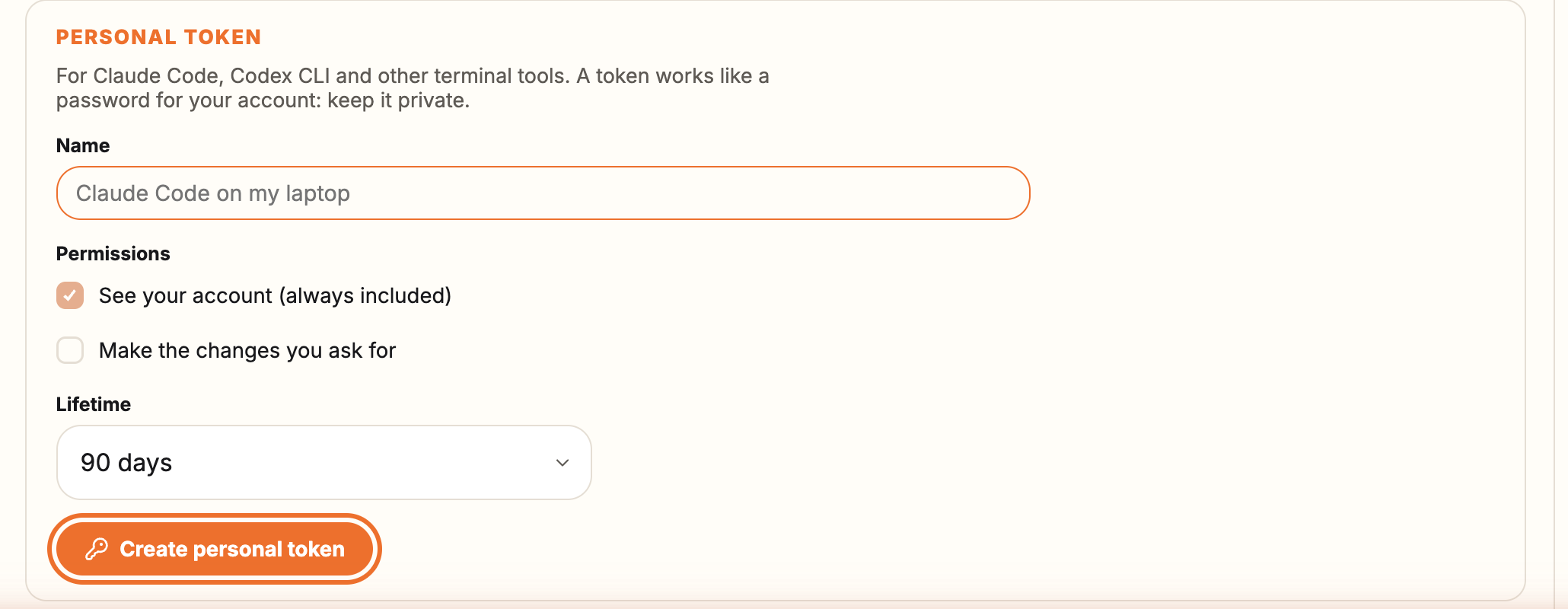
Create a personal token
- In your cabinet open Settings and expand AI agents.
- Under Personal token type a name you will recognise later, for example "Laptop Codex".
- Permissions: "See your account" is always included. Tick "Make the changes you ask for" if the assistant may change things.
- Choose how long the token lives (30, 90 or 365 days) and press "Create personal token".
- Copy the token straight away. It is shown only once; if you lose it, revoke it and create a new one.
Claude Code
The page shows a ready command with your token filled in. Copy it and run it in your terminal. It looks like this:
Claude Code
claude mcp add --transport http in-store https://in-store.ca/api/mcp --header "Authorization: Bearer YOUR_TOKEN"Codex CLI
- Keep the token in an environment variable: export IN_STORE_MCP_TOKEN=YOUR_TOKEN (add the line to your shell profile so it survives a restart).
- Add the server: codex mcp add in-store --url https://in-store.ca/api/mcp --bearer-token-env-var IN_STORE_MCP_TOKEN
- Start Codex and ask, for example, "List my posts that are waiting for review".
Token variable
export IN_STORE_MCP_TOKEN=YOUR_TOKENAdd the server
codex mcp add in-store --url https://in-store.ca/api/mcp --bearer-token-env-var IN_STORE_MCP_TOKENGood to know
- If you also installed IN-STORE as a plugin in ChatGPT, check whether that plugin is available in your Codex client. Available connections depend on the client and workspace settings. Name the server in your request ("using the in-store MCP server") so Codex uses the connection you set up.
- When running Codex non-interactively (codex exec), a tool that needs approval may be blocked if no approval interface is available. Use an interactive session to review approval requests, or configure permissions for your automation explicitly. IN-STORE still requires its own two-step confirmation for changes.
Other MCP clients
Any client that supports Streamable HTTP MCP servers can connect: use the address https://in-store.ca/api/mcp and send the token in the header "Authorization: Bearer YOUR_TOKEN". Clients that support signing in (OAuth), like Claude and ChatGPT, do not need a token.
Address
https://in-store.ca/api/mcpHeader
Authorization: Bearer YOUR_TOKENTreat the token like a password: anyone who has it can act in your account within the permissions you chose. Never paste it into a chat, an email or shared code.