
Welcome to your cabinet
Once your subscription is active, the cabinet becomes your home base. This is where you fill in your intake, review your content and talk to our team.
At the top of every page you will find the IN-STORE logo, which opens our website in a new tab, a "show hints" switch that shows or hides a short introduction to the page you are on, and a bell that collects your notifications.
The menu grows as we ship new tools, so you may see more items than shown here. Each tool has its own guide in the Help Centre.
Start with the intake form
The first thing you see is step 1 of the 5-step marketing intake. Your registration details are already filled in, an AI assistant helps you at each step, and your answers save as you type. The whole form takes about 30 minutes, and you can leave and come back at any time.
Our team builds your content from these answers, so this is the best place to start.
The menu on the left
The menu switches between the areas of your cabinet. Each item has a short description under its name:
- Intake form – your brand questionnaire.
- Media Plan – your content calendar: review, approve and schedule your posts.
- Media Library – your images, videos and logos.
- Support & Feedback – send our team a question, a bug report or an idea.
- Settings – your answers, brand assets, default channels, preferences, and payments and subscriptions.
- What's new – a pop-up with recent updates to the cabinet. An orange dot means there is something you have not seen yet.
- Help – opens this Help Centre in a new tab, so you never lose your place in the cabinet.
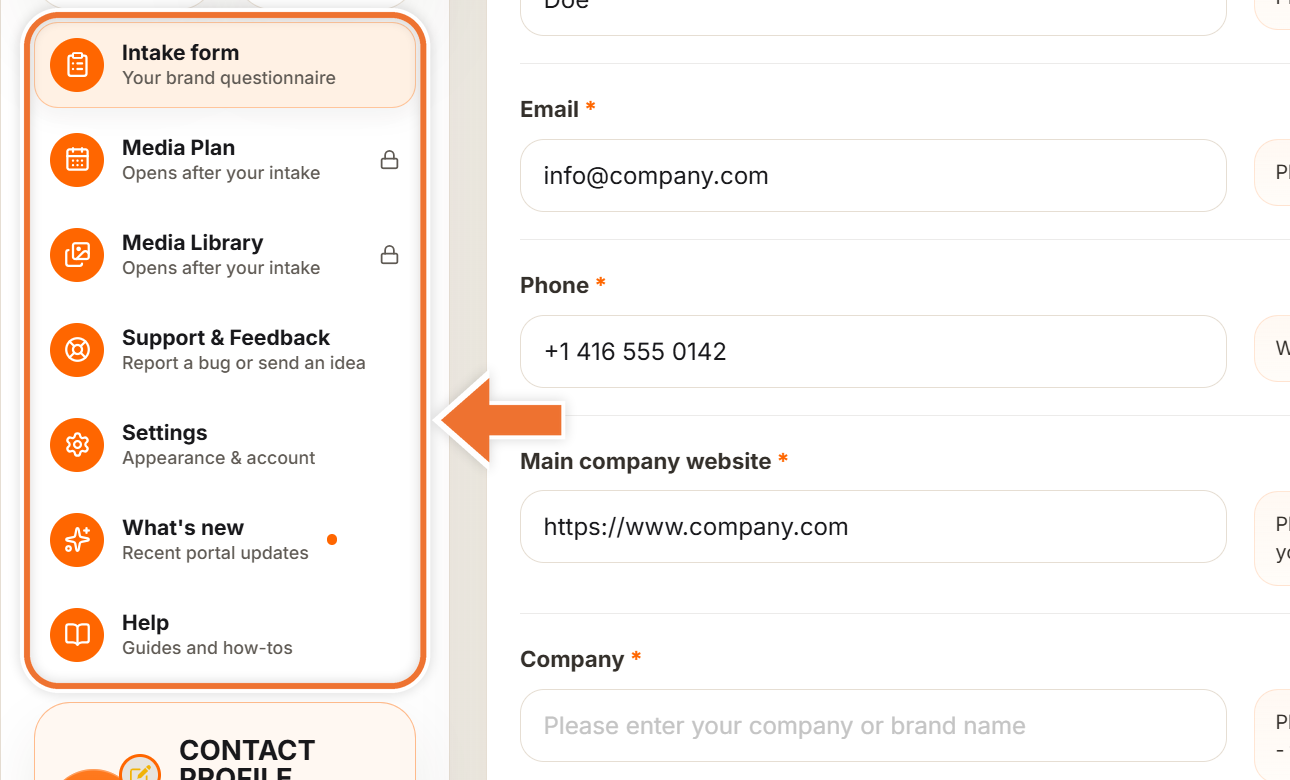
Depending on your plan, you may also see Voice Agent (your AI phone agent's calls and recordings), Performance (ads, search and website traffic) and Competitors (what your competitors publish). On a phone or tablet the same sections move to a bar at the bottom of the screen.
What is locked until your intake is in
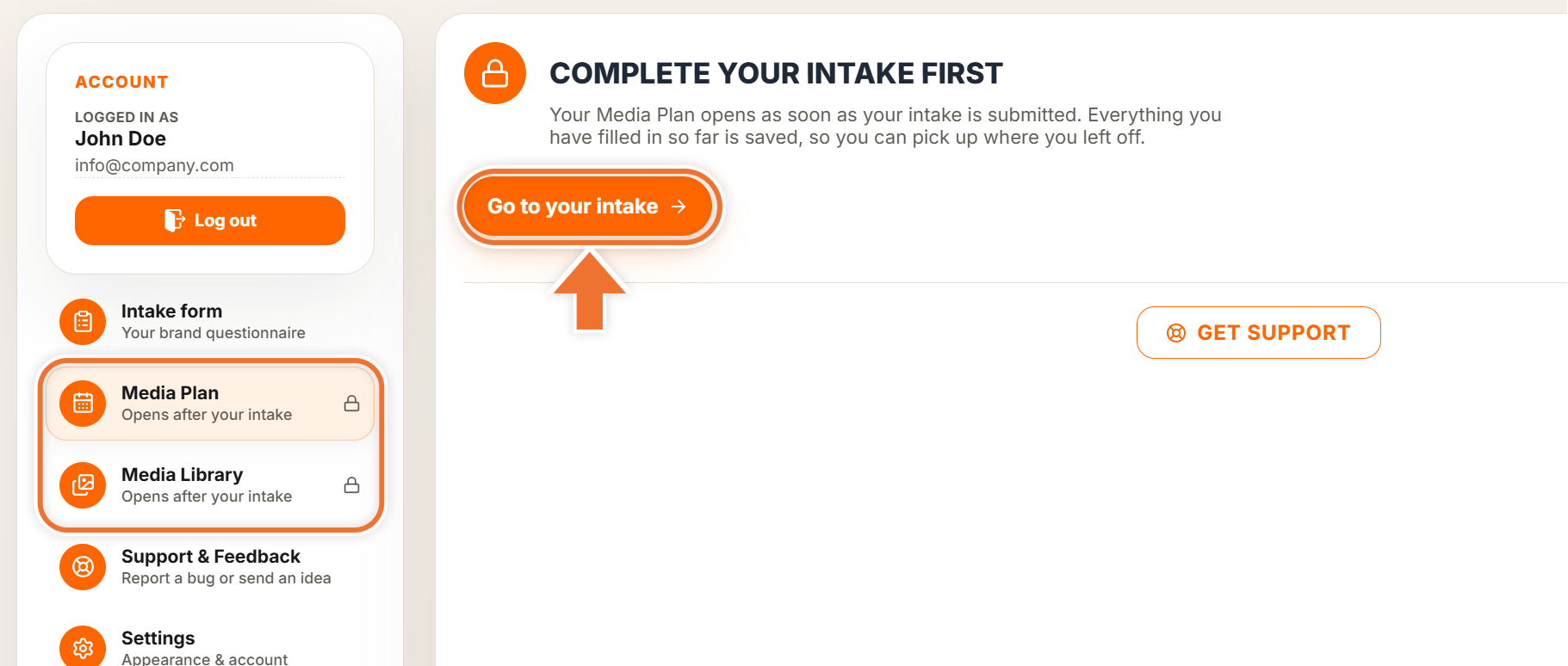
Media Plan and Media Library open as soon as you submit your intake. Until then they stay in the menu with a lock and the line "Opens after your intake". Opening one shows "Complete your intake first" and a "Go to your intake" button that takes you straight back to the form. Everything you have filled in so far is saved.
After you submit your intake
Once your intake is in, Media Plan and Media Library unlock and the Intake form item leaves the menu, because the cabinet now centres on your content. Your answers are still there: you can review and change any of them in Settings under "Your answers". If your business changes a lot, you can start the intake again from Settings, "Intake preference", "Re-do intake".
Where to get help
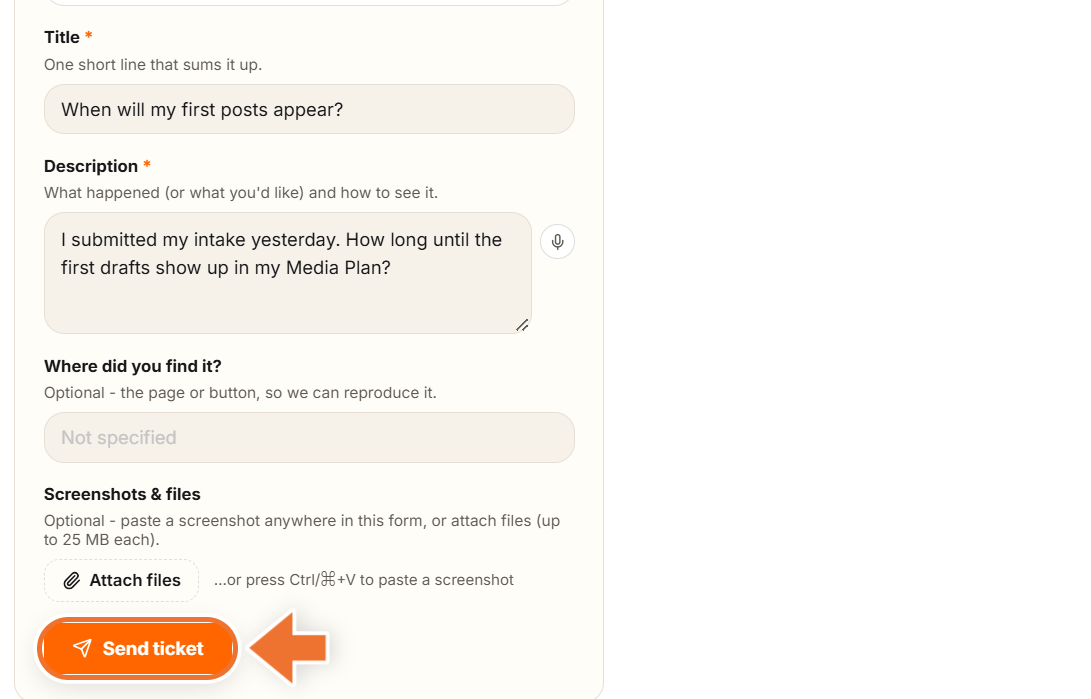
The fastest way to reach our team from inside the cabinet is Support & Feedback. You can also press "Get Support" at the bottom of any cabinet page.
- Choose the type: "Bug - something is broken", "Idea / suggestion", "Improvement to something existing" or "Question".
- Give it a short title and describe what happened or what you need.
- Optionally, say where you found it and attach screenshots or files (up to 25 MB each). You can also paste a screenshot straight into the form.
- Press "Send ticket". It lands in our team queue, and you can follow it under "Your tickets" on the same page.
Prefer to talk? The voice assistant button in the bottom-right corner of the cabinet connects you to our AI assistant, which can answer questions about your account.