

The simple rule
Your access follows your subscription. While it is active or in its free trial, your cabinet is open. When there is no active subscription, the working area stays locked. Your account and everything you have saved remain safe: only access is paused.
There is a second, separate step inside the cabinet: Media Plan and Media Library open once your intake has been submitted. So if your subscription is active but those two show a lock, the next step is to finish your intake, not to pay.
Where to see your status
If access is locked, you see the "Unlock your intake" screen. Its table shows your account email, your current status, the date your current period ends when one is known, and whether access is open.
After paying, the page updates by itself. If it has not caught up, press "Refresh access" to check your subscription with Stripe again.
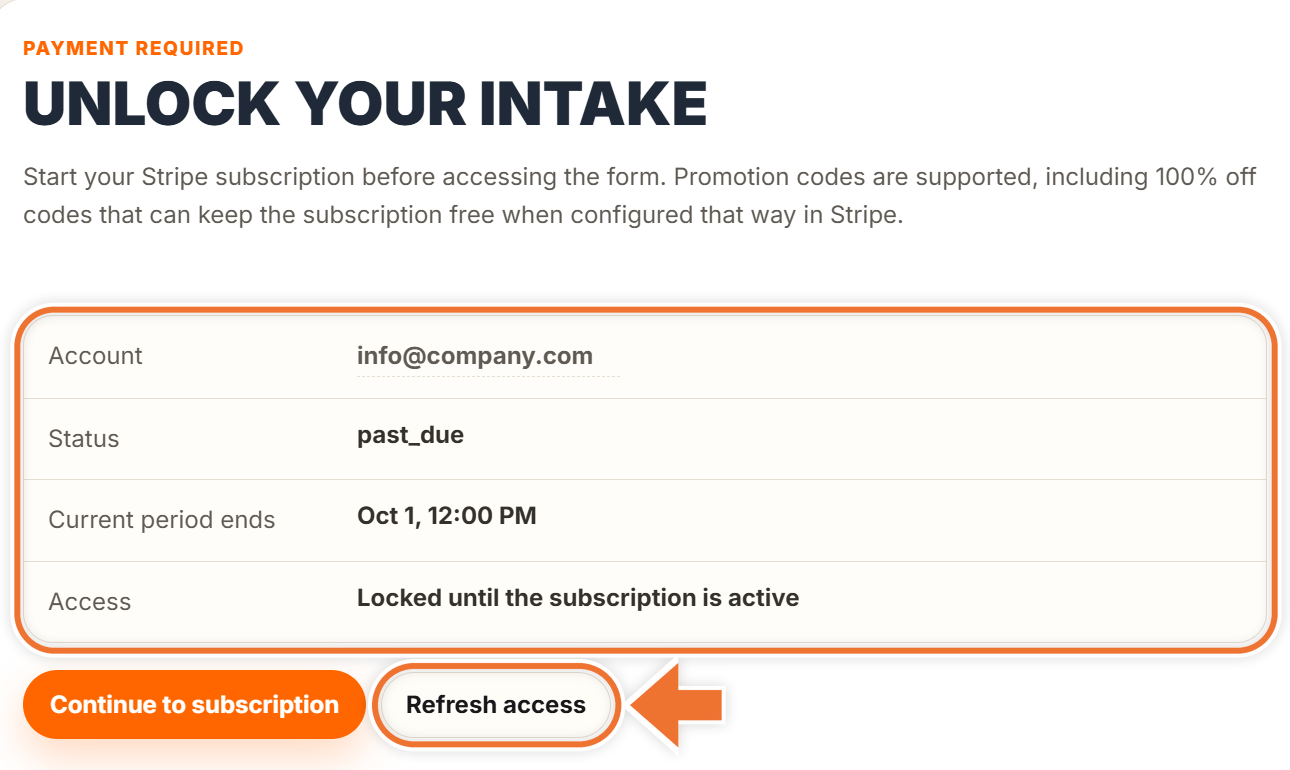
Once you are in, the same information lives in Settings, under "Payments and subscriptions", with a coloured badge such as "Free trial", "Active" or "Past due".
What each status means
These are the values you may see next to "Status":
- trialing – your free first month is running. Full access.
- active – your subscription is paid and current. Full access.
- paid – your payment is confirmed. Full access.
- waived – no payment is needed on your account, for example after a 100% promo code. Full access.
- unpaid – no subscription has been started yet, or Stripe could not collect a payment after several attempts. Locked.
- pending – checkout was opened but not finished, or the payment is still being confirmed. Locked until it completes.
- past_due – the latest payment did not go through. Locked until the payment succeeds.
- incomplete – the first payment needs an extra step, such as confirming it with your bank. Locked.
- incomplete_expired – the first payment was never completed. Locked.
- canceled – the subscription has ended. Locked.
- paused – the subscription is paused. Locked.
What to do when access is locked
- Nothing set up yet, or your subscription was cancelled: press "Continue to subscription" and complete Stripe Checkout.
- Just paid: wait a moment, then press "Refresh access".
- A payment failed (past_due or unpaid): open Settings from the menu on the left, expand "Payments and subscriptions" and press "Manage billing". It opens Stripe's secure page, where you can update your card. Access reopens as soon as the payment succeeds.
Seeing a maintenance screen instead? That is not about your subscription: we are updating the system, and your cabinet comes back on its own when we are done.