How access works
Creating an account is free. The working area opens once your subscription is active, and it opens in two stages:
Your first month is free, so you can fill in the intake and see your first content before anything is charged.
- When your subscription starts, the marketing intake form opens, together with Support & Feedback, Settings and Help.
- When you submit your intake, Media Plan and Media Library open as well. Until then they stay in the menu with a lock icon.
Before you start: confirm your email
If you registered with an email and password, open the "Verify your email" link we sent you before you continue. The payment step stays closed until your email is confirmed. Signed in with Google, Apple, Facebook, LinkedIn or Microsoft? Then there is nothing to confirm.
Step 1 – accept the public offer
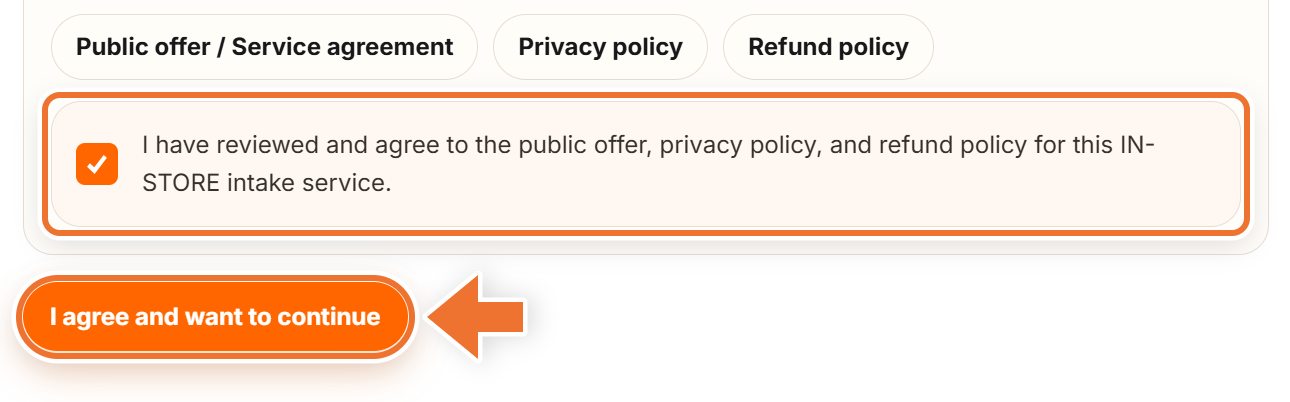
Right after your first sign-in you will see the "Accept the public offer" screen. It shows the service agreement on the page, and three buttons open the public offer, privacy policy and refund policy in separate tabs.
Read the terms, tick the box "I have reviewed and agree to the public offer, privacy policy, and refund policy for this IN-STORE intake service", and press "I agree and want to continue".
Step 2 – start your subscription
Next comes the "Unlock your intake" screen. It shows your account email, your subscription status and whether access is open. Press "Continue to subscription" to open Stripe Checkout, a secure payment page where you enter your card details and billing address. Your card details go to Stripe and never touch our servers.
Prices do not include tax. Stripe adds any sales tax that applies, such as GST or HST, based on your billing address, and shows it before you pay.
When the payment step is done, Stripe sends you back to the member area. You will see "Payment received. We are unlocking your intake access now." and the intake form opens on its own within a few seconds.
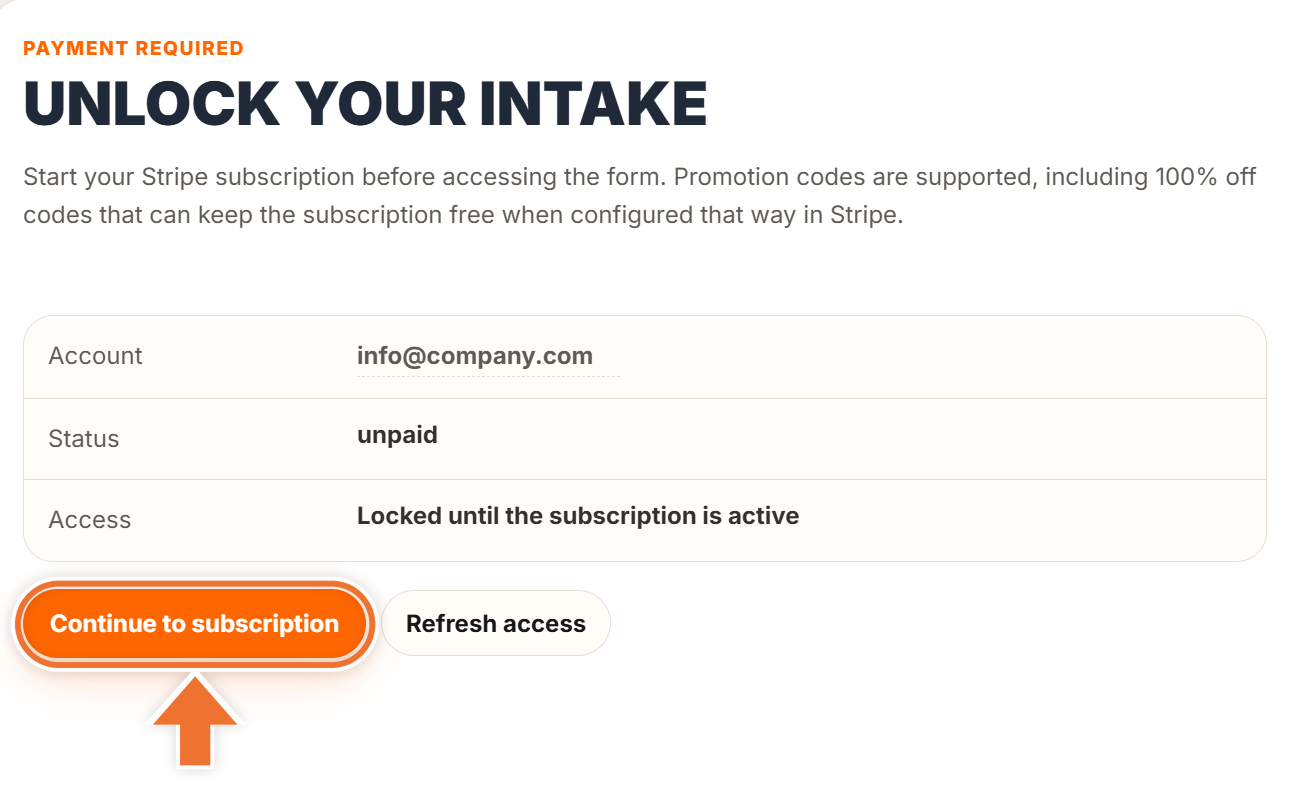
Still on the "Unlock your intake" screen after paying? Press "Refresh access". It checks your subscription with Stripe again. If you closed Stripe Checkout without paying, you will see "Checkout was canceled" and can simply start again.
Your first month is free
New IN-STORE accounts start with a 30-day free trial. Stripe Checkout still asks for a card and billing address, so your access continues without a gap when the month is over, but nothing is charged while the trial runs.
You can see the end date at any time: open Settings in your cabinet and expand "Payments and subscriptions". The "Free trial ends" line shows the date, and the first charge is taken when the trial ends. Cancel before that date and you pay nothing.
Promo codes and discounts
Stripe Checkout has a promotion code field. Discounts of up to 100% and special partner discounts are available. Contact us to get a code before you pay, then enter it on the Stripe page.
What opens, and when
As soon as your subscription is active, you land on the 5-step marketing intake. Start there: it is the foundation our team builds your content from, and it saves as you type, so you can stop and come back at any time.
Once you submit the intake, Media Plan and Media Library unlock. That is where you will review and approve your content.